Science / Grade 4
Undo, redo and check the active area
Learning goal: Trace an editing history, distinguish undo from backup and check focus before a shortcut.
Before you start: Distinguish an insertion point from a selection and follow two named text replacements.
Read or print this lesson What to practice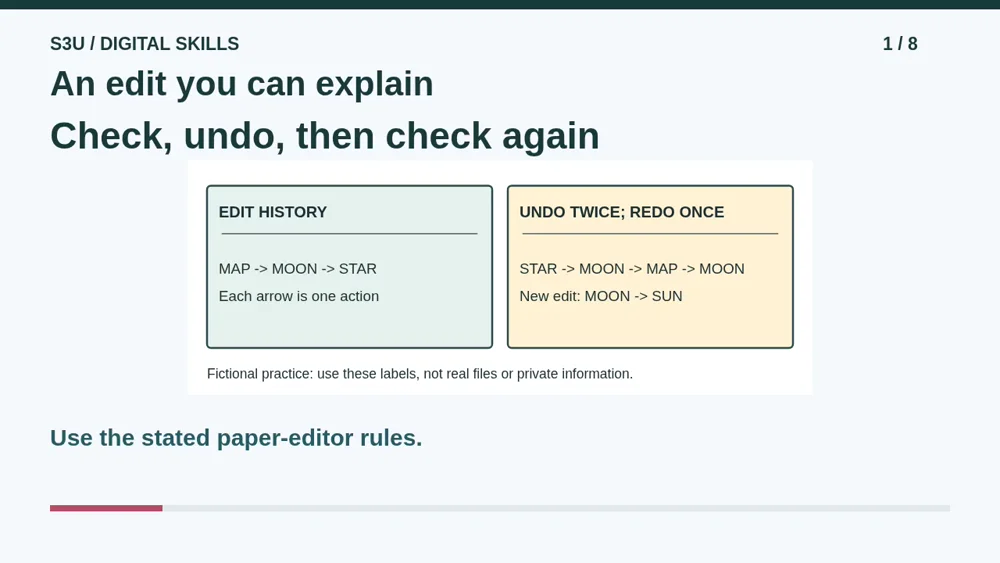
Audio and video share one lesson record. Keep this page open while listening.
Download audio Downloads do not save lesson progress.
The audio could not load. The transcript is still available below.
Next: your worksheet
Follow Undo and Redo
Checking sign-in...
Read the transcript
Saved reading place
Audio transcript and practice. Reading or printing does not count as playback time or an assessed grade.
1. An edit you can explain
Audio: 0:00
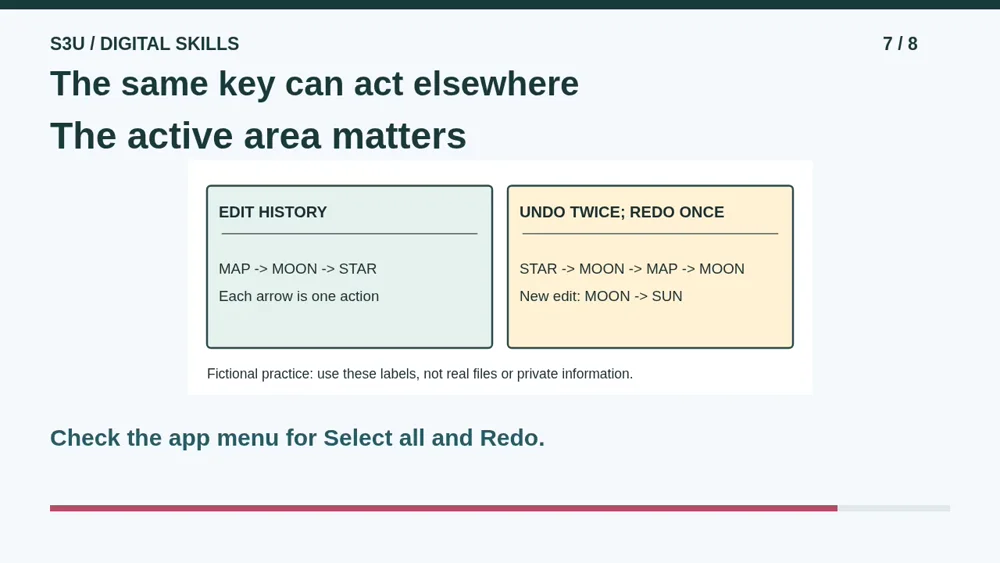
A title changed from MAP to MOON, then from MOON to STAR. You want to reverse the last change, not erase your whole project. Today we will follow Undo and Redo step by step, then check where a keyboard shortcut will act. Our examples contain invented text, not important files.
2. Undo steps backward
Audio: 0:22
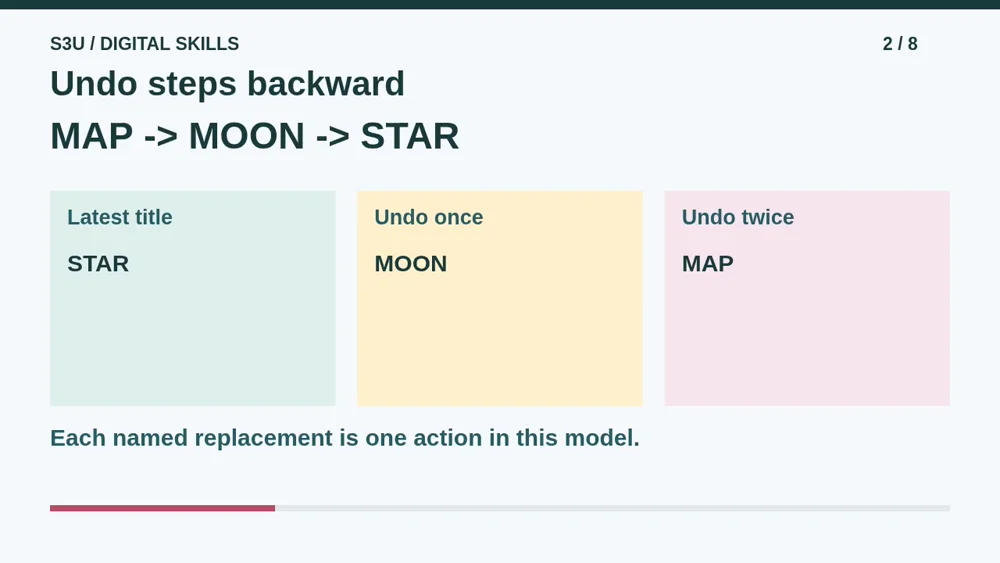
Our model treats each whole-title replacement as one action. Undo reverses the latest available action first. From STAR, one Undo returns MOON. A second Undo returns MAP. It does not jump straight to a perfect title. Undo knows the editing history, but it has not read your mind.
3. Redo and a new branch
Audio: 0:46
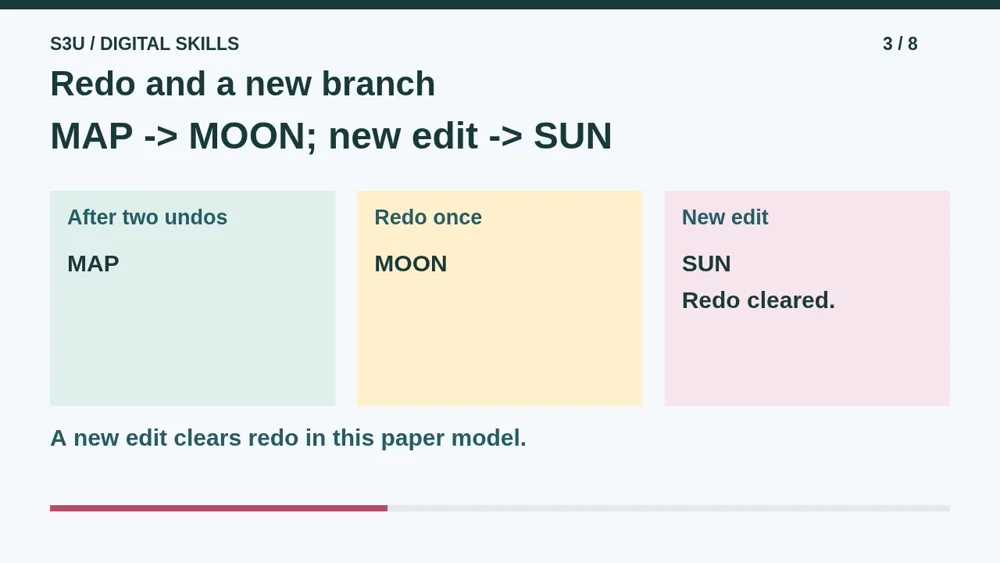
After those two undos, one Redo reapplies the first replacement and returns MOON. Now make a new edit that changes MOON to SUN. In our model, that new action clears the old redo branch. Real applications can group typing or manage history differently. Check which command is available instead of assuming every app behaves identically.
4. Focus comes before a shortcut
Audio: 1:13
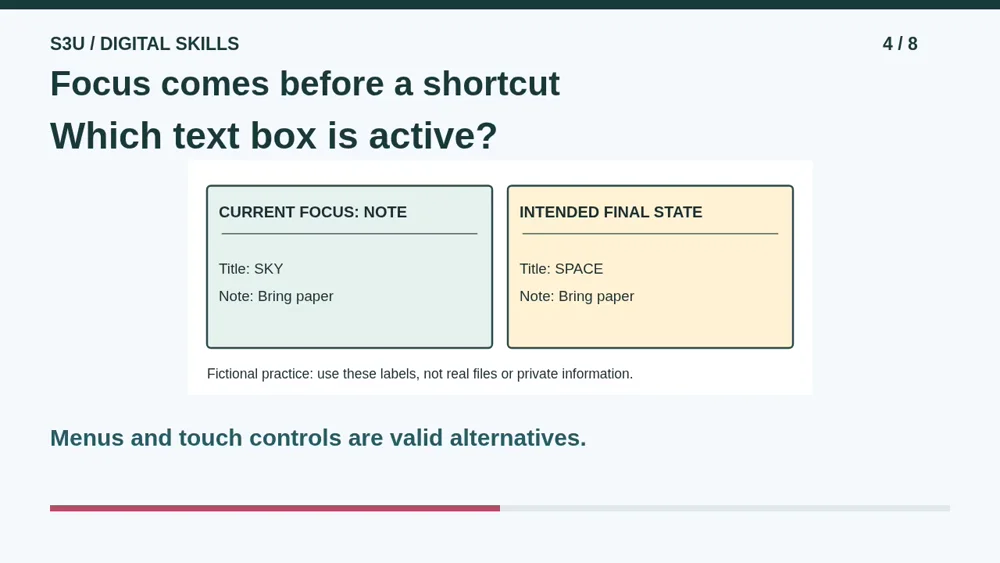
A shortcut acts in the current app or focused area. If Note has focus but you want to change Title, activate Title first. Common Windows text commands use Control with C, X, V and Z for Copy, Cut, Paste and Undo. Mac text editing commonly uses Command with those letters. A labeled menu can do the job too.
5. Pause: reverse one fresh edit
Audio: 1:39
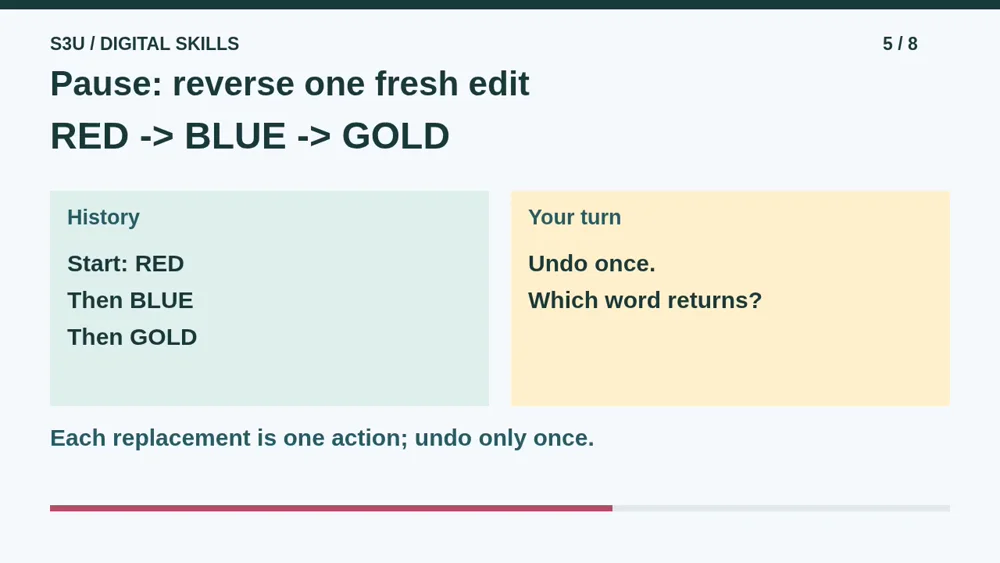
Try a fresh history. A color label starts RED, changes to BLUE, then changes to GOLD. Each replacement is one action. Pause and predict the word after one Undo. Also decide whether pressing Undo guarantees that an independent backup exists. Think about an editing history and a separate saved copy as different things.
6. Check what Undo can promise
Audio: 2:06
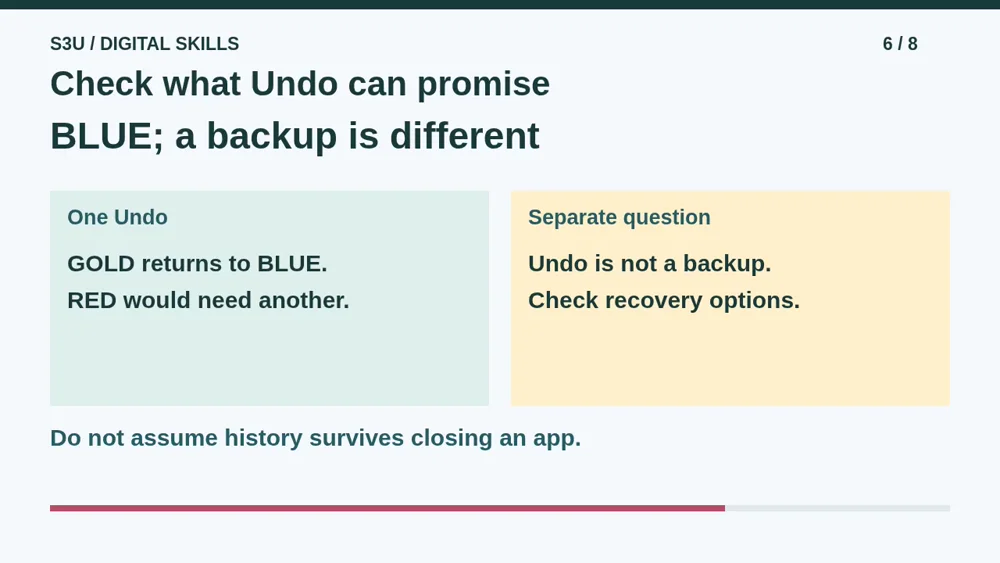
One Undo returns BLUE because it reverses only the latest action, the change to GOLD. It does not prove that a separate backup exists. Undo history can be limited and may disappear when an app closes. If important work seems lost, stop experimenting and ask a trusted adult about the app and its recovery options.
7. The same key can act elsewhere
Audio: 2:31
Fun fact: Select all can select different things depending on which area has focus. Inside our Note box it selects the note text, not every object on the screen. A shortcut is a quick route to a command, not a safety check. Before a big replacement, look at the selection and the active area.
8. Follow a history on paper
Audio: 2:54
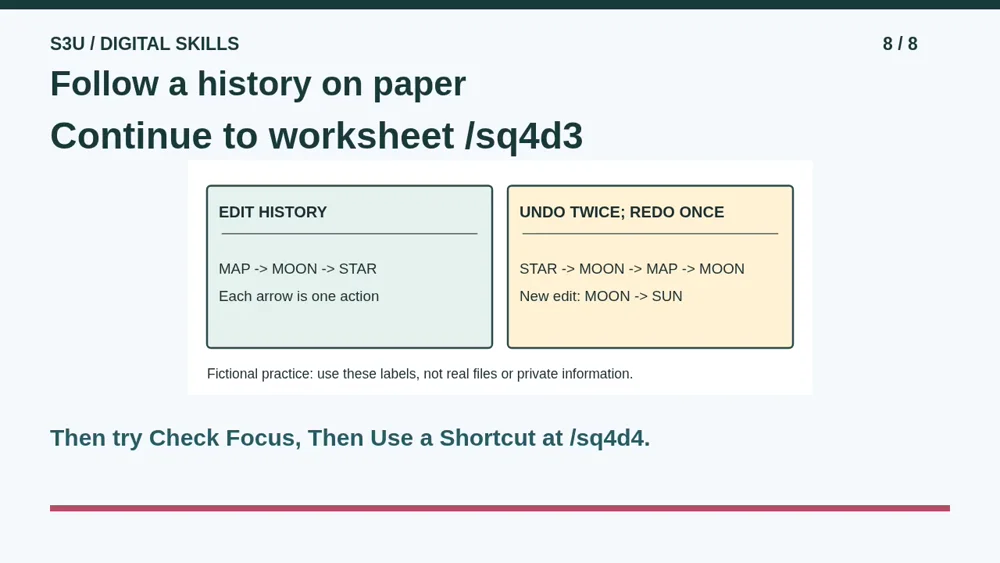
Continue to Follow Undo and Redo. Trace each stated replacement, undo and redo without skipping steps. Then use Check Focus, Then Use a Shortcut to choose the correct text box and commands. The goal is an edit you can explain, not fast typing. Keep all practice in the fictional examples.
Show your understanding
You can point, explain aloud, draw or write.
- Trace undo and redo one stated action at a time and distinguish editing history from backup.
- Choose the intended active text box before using an edit command, and recognize menu alternatives to shortcuts.
Try it yourself
Pause at RED, BLUE, GOLD. Predict one undo and explain why undo is not proof of an independent backup.
Continue to the history worksheet, then check the active text box and common commands at /sq4d4.
Next: your worksheet
Follow Undo and Redohttps://s3u.com/sq4d3
Lesson: https://s3u.com/listen/undo-and-check