Science / Grades 5-6
Working copy and saved file
Learning goal: Trace edits and successful saves, distinguish ordinary RAM from storage, and read separate capacity reports.
Before you start: Add and subtract small counts and read a simple capacity report. Autosave and recovery are explicitly absent in the fictional drawing app.
Read or print this lesson What to practiceThe video could not load. The transcript is still available below.
Next: your worksheet
Keep Working Memory and Saved Files Separate
Checking sign-in...
Read the transcript
Saved reading place
Video transcript and practice. Reading or printing does not count as playback time or an assessed grade.
1. Two copies, two jobs
Video: 0:00
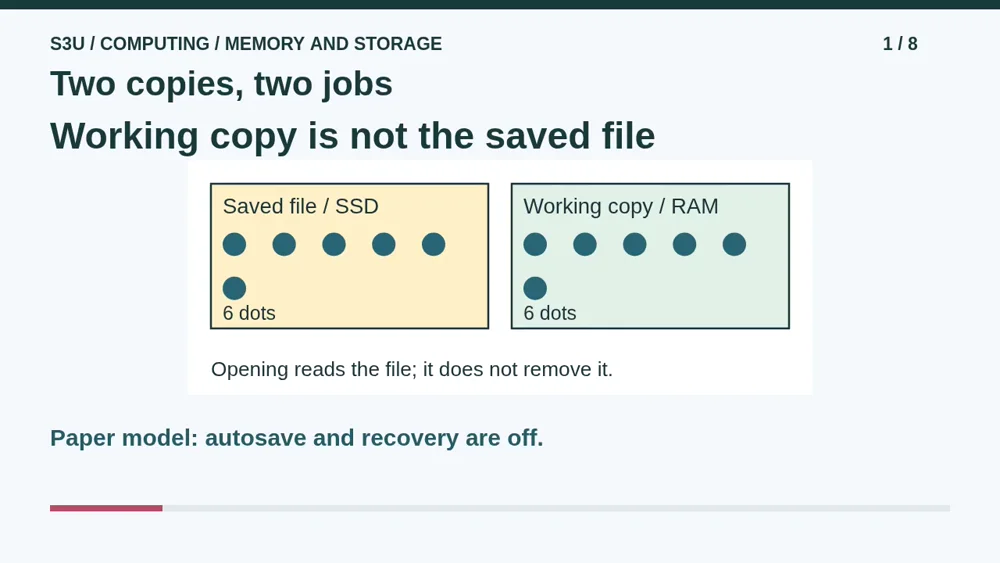
A drawing on your screen can be different from its saved file. In our pretend drawing app, a stored picture contains six dots. Opening it makes a working copy with six dots too. The working copy is the version being edited; the saved file is the version kept in storage. Our paper model has no autosave or recovery. Do not switch off a real device to test it.
2. An edit changes the working copy
Video: 0:28
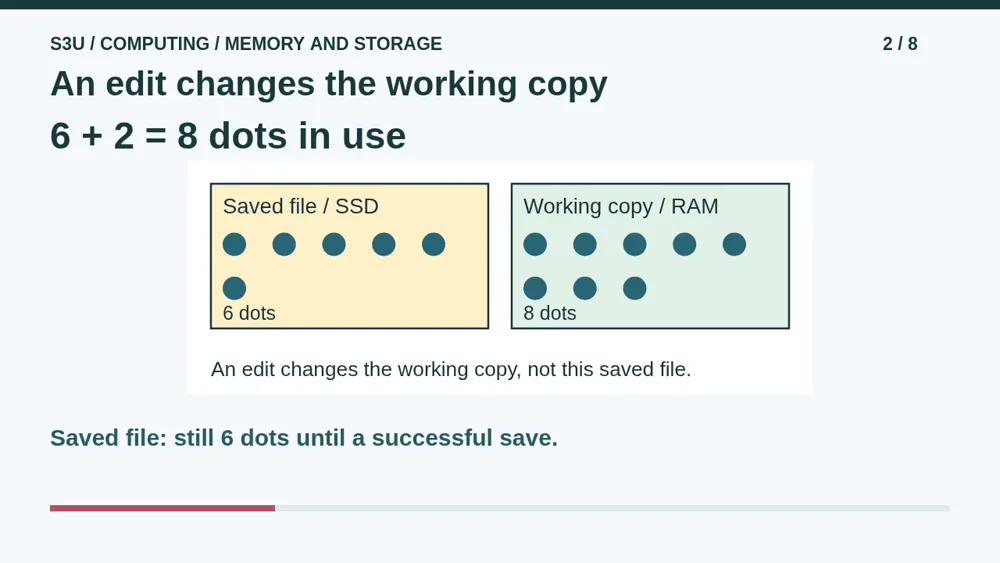
Add two dots to the open picture. The working copy now has eight dots, but the saved file still has six. Seeing eight on the screen is not proof that those eight are saved. In this model, ordinary RAM holds the information in use, while the saved file is on an SSD. The screen does not send the dots a tiny moving van every time you draw one.
3. Save, then edit again
Video: 0:55
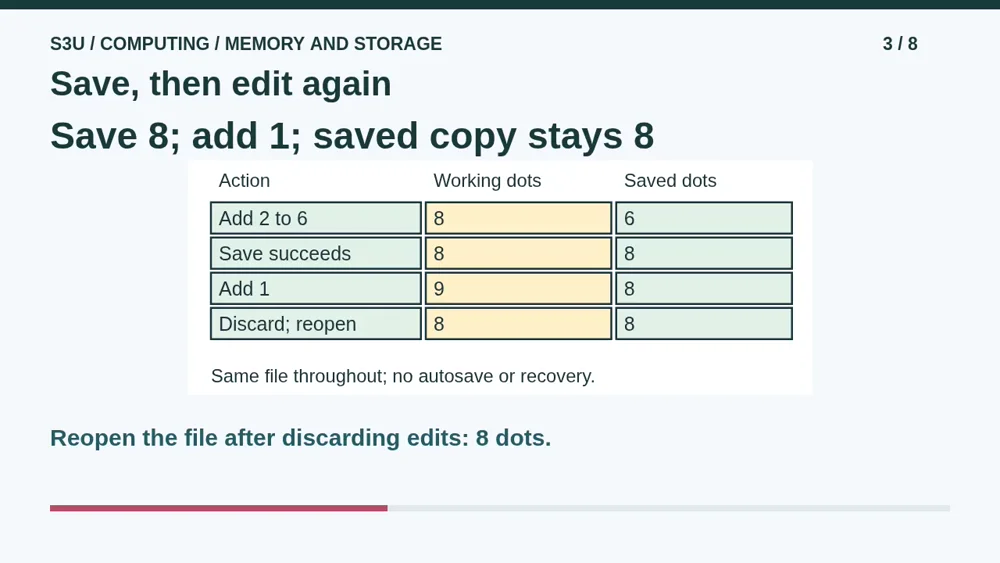
Now a successful save writes the eight-dot version to the file. Add one more dot afterward. The working copy has nine, while the saved file has eight. If we deliberately discard that last unsaved edit and reopen the file, we get eight dots. The most recent successful save matters, not the biggest number you remember seeing. Every step in this story refers to the same file, not a second Save As copy.
4. Read each capacity separately
Video: 1:26
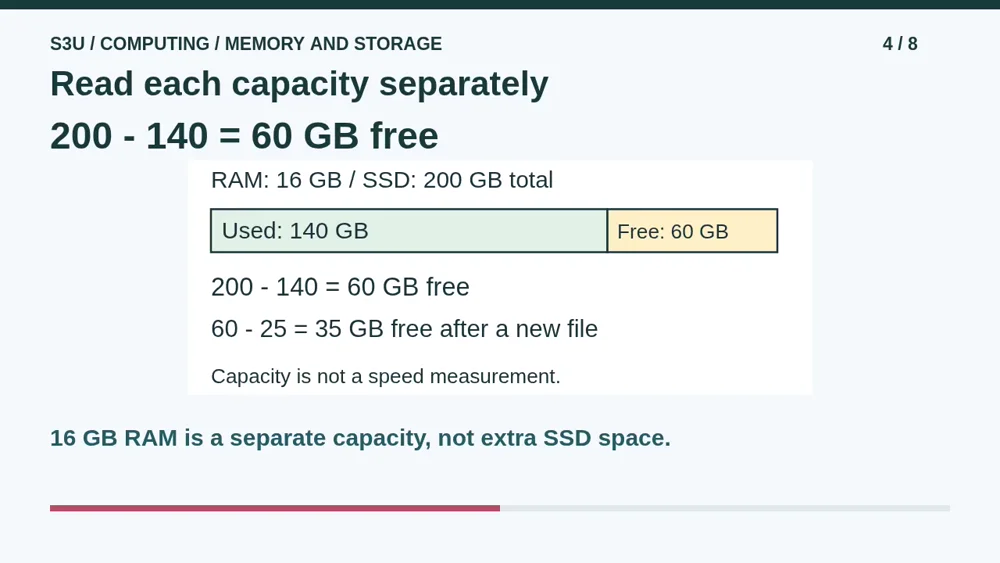
Our fictional device lists sixteen gigabytes of RAM and two hundred gigabytes of SSD space. One hundred forty gigabytes of the SSD are used, leaving sixty free. Storing a new twenty-five-gigabyte file leaves thirty-five free in this simplified report. It does not add to or subtract from the listed RAM capacity. Capacity tells us how much space is available, not how fast every program will run. We are reading a paper report, not deleting real files.
5. Pause: follow the last save
Video: 2:02
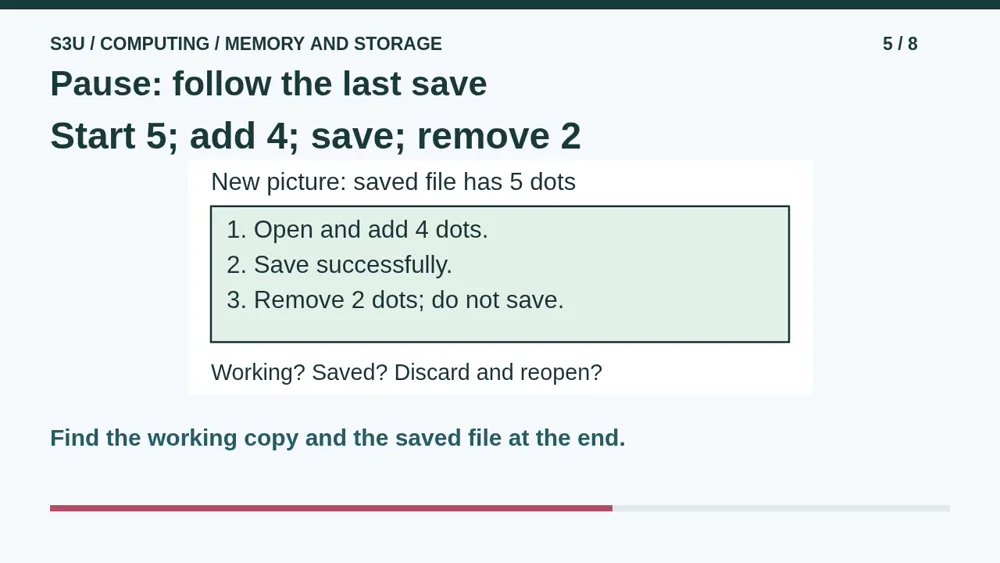
Try a fresh picture. Its saved file starts with five dots. Open it, add four dots, and successfully save. Then remove two dots from the working copy without saving again. Pause and make two columns: working copy and saved file. How many dots are in each at the end? If you discard the unsaved changes and reopen the saved file, how many return? Keep autosave and recovery off in this paper story.
6. The stored copy follows the save
Video: 2:35
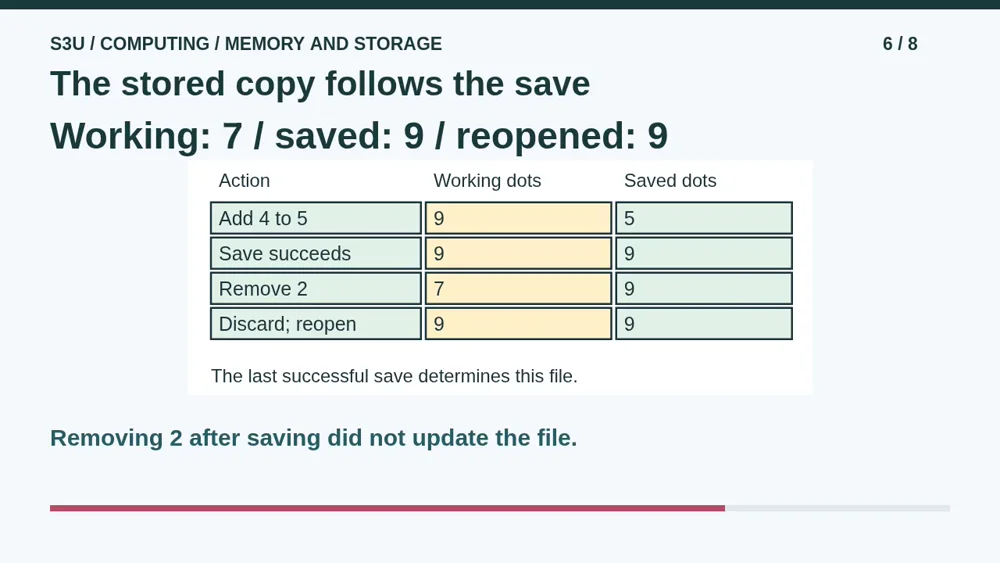
Five plus four makes nine. Before the save, the working copy has nine and the file still has five. The successful save makes the file nine too. Removing two afterward leaves seven in use, but nine still saved. Discarding the unsaved removal and reopening brings back nine. The working copy can have fewer dots than the file, not just more. Follow the actions instead of choosing whichever number is larger.
7. Same units, different jobs
Video: 3:07
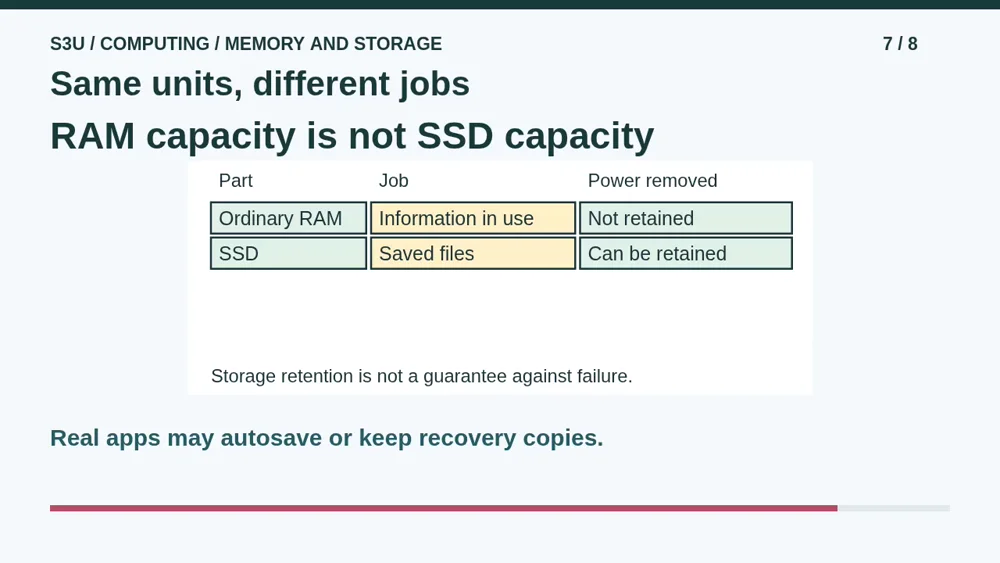
Fun fact: the same drawing can have information in working memory and in a saved file at the same time. These are different jobs even when the capacities both use gigabytes. Ordinary RAM needs power to keep its contents. SSD storage can retain saved files without continuous power, but that is not a promise that a drive can never fail. Real apps may autosave or keep recovery copies. Check their saved status rather than applying our simplified story blindly.
8. Continue to the worksheet
Video: 3:44
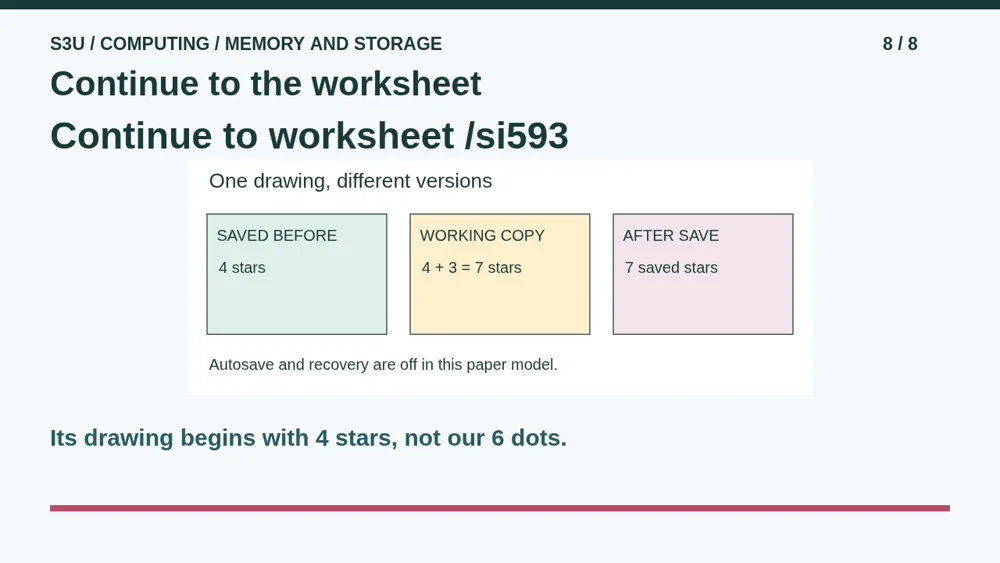
Continue to the worksheet below. Its drawing begins with four stars and adds three, so trace those numbers instead of copying our example. Explain which information is in use and which is saved. Then try Memory Is Not Storage for a different capacity report. Keep the RAM amount separate from the SSD total, used space and free space. No equipment needs to be opened, switched off or changed for either activity.
Show your understanding
You can point, explain aloud, draw or write.
- Trace working and saved copies separately through edits, successful saves and reopening after discarded changes.
- Distinguish ordinary RAM from SSD storage, calculate free storage and explain why capacity alone does not establish speed.
Try it yourself
Pause at the fresh five-dot picture. Trace adding four, saving and removing two; explain what reopening restores.
Continue to the worksheet, then try Memory Is Not Storage. Use the fictional reports; do not switch off equipment, delete files or change settings.
Next: your worksheet
Keep Working Memory and Saved Files Separatehttps://s3u.com/si593
Lesson: https://s3u.com/lessons/working-copy-and-saved-file