Science / Grade 3
Select, copy and paste with care
Learning goal: Choose an exact text selection and compare copying, cutting and repeated pasting in a paper editor.
Before you start: Read a short sentence and identify its letters, spaces and period. Use only the supplied pretend text.
Read or print this lesson What to practiceThe video could not load. The transcript is still available below.
Next: your worksheet
Select Just the Text You Need
Checking sign-in...
Read the transcript
Saved reading place
Video transcript and practice. Reading or printing does not count as watched time or an assessed grade.
1. Change just the right words
Video: 0:00
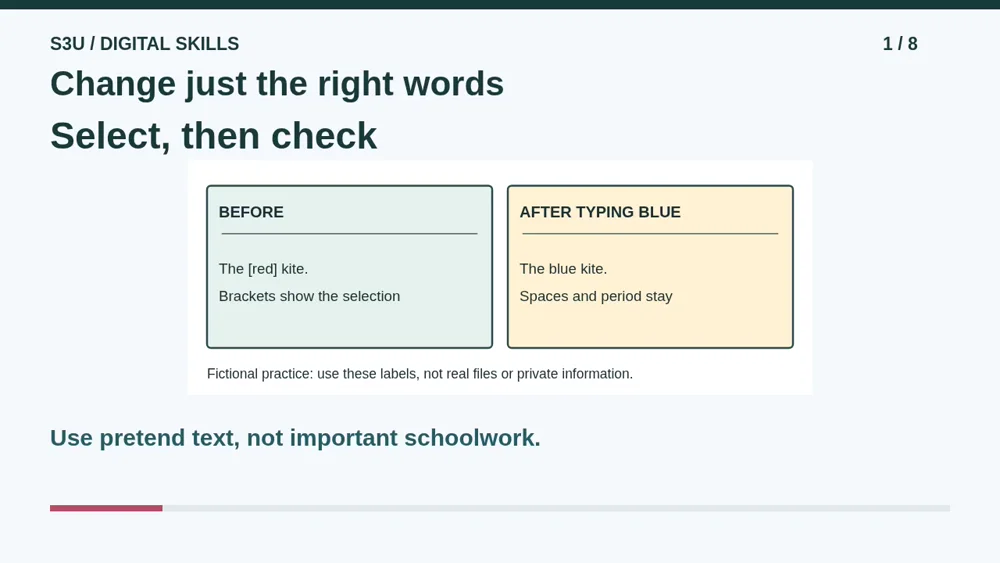
A poster says red kite, but your kite is blue. You do not need to throw away the whole sentence. Today we will choose exactly what to change, then compare copying and cutting. Our editor is a paper model. No real files, passwords or messages are needed.
2. A point is not a selection
Video: 0:21
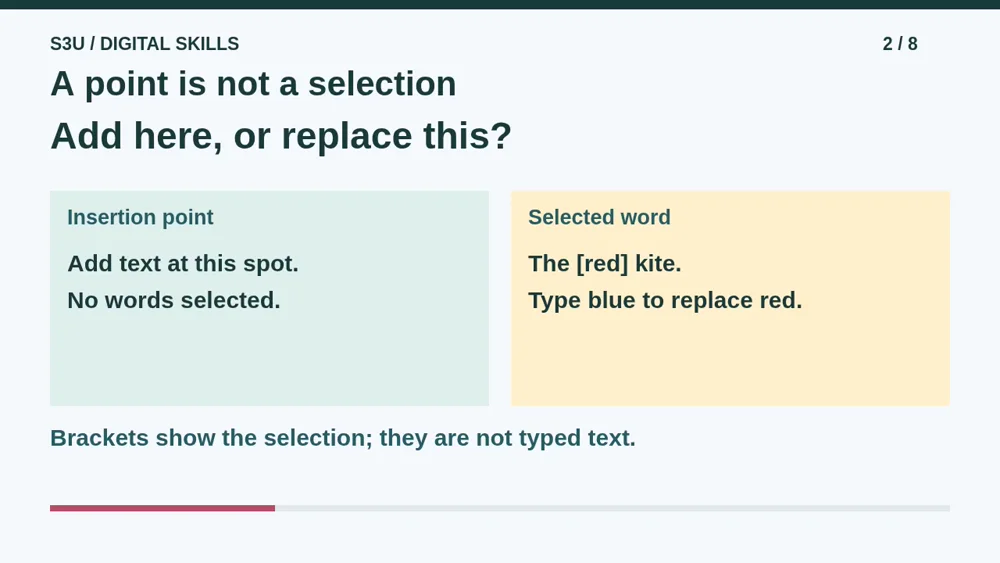
The insertion point marks a place for new text. A selection marks existing text that an edit will affect. In our example, brackets surround just red. Type blue and only those three selected letters are replaced. The spaces and period stay. The sentence gets a small repair, not a surprise demolition.
3. Copy keeps the source
Video: 0:46
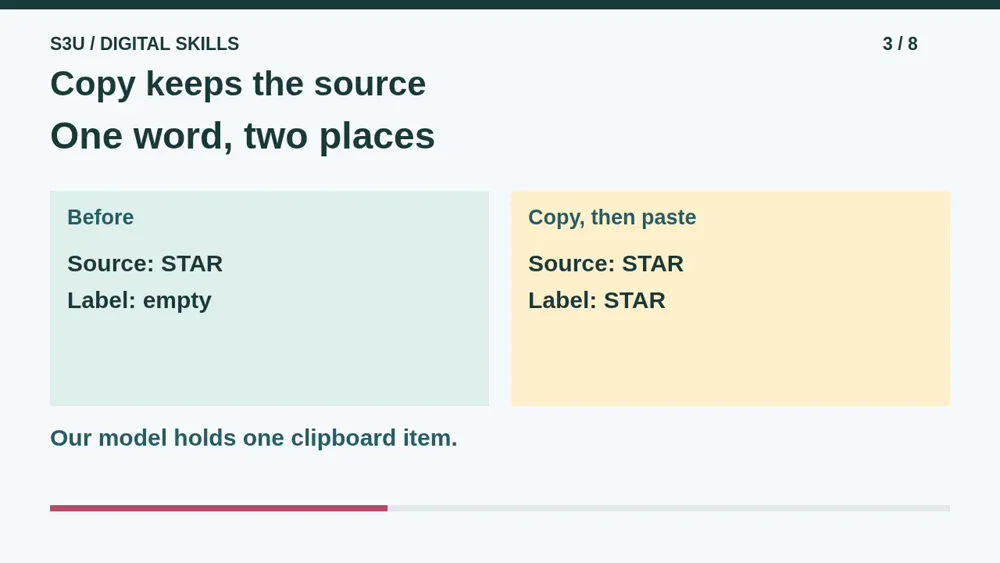
Select STAR in the source box and choose Copy. The source still says STAR. The clipboard now holds a copy of those letters. Paste into an empty label, and it says STAR too. There are two text boxes containing the word. Copy did not move the original out of its chair.
4. Cut removes selected text
Video: 1:08
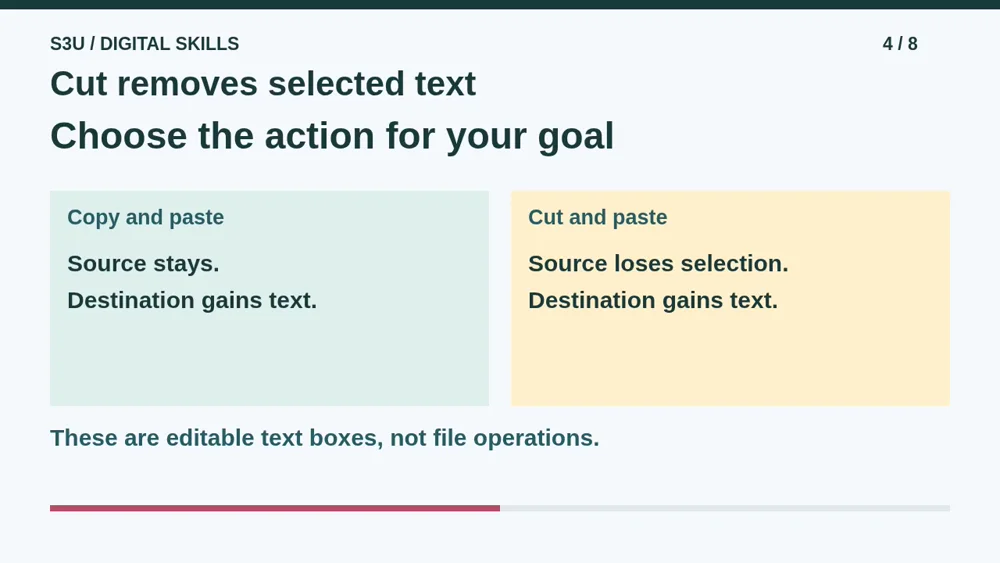
Start over. Select STAR, choose Cut, then Paste into the empty label. Cut removes those letters from the editable source and puts them on the clipboard. Paste adds them at the destination. Choose Copy when the source should stay. Choose Cut when selected source text should be removed. Always check your selection first.
5. Pause: make a new label
Video: 1:34
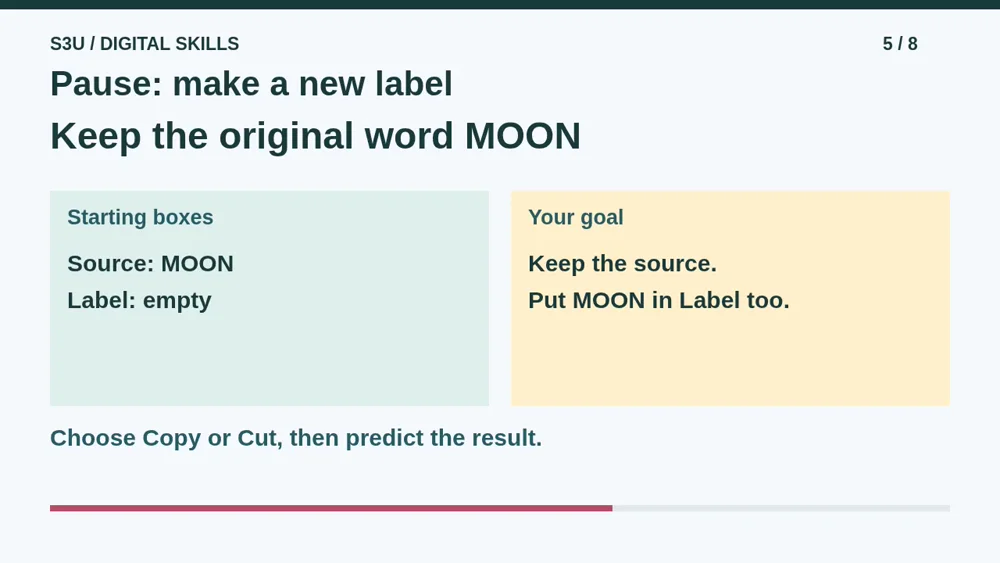
Here is a new example. Source says MOON and Label is empty. You want both boxes to say MOON. Pause and decide whether to Copy or Cut before pasting. Then imagine putting the insertion point after MOON in Label and pasting again. Our model inserts no spaces for you. What would Label say?
6. Check the source and the space
Video: 1:59
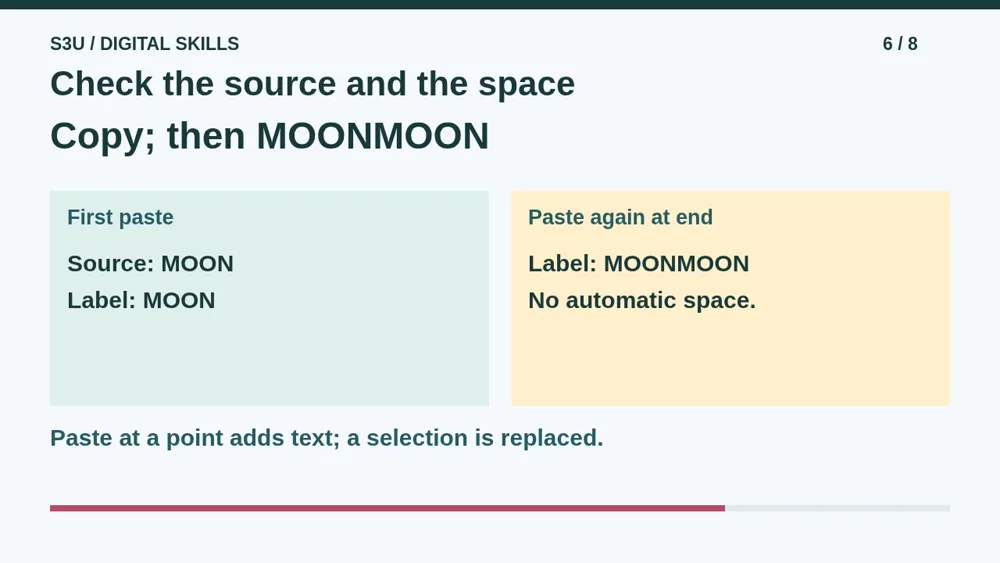
Choose Copy, because the source must remain. After one Paste, both boxes say MOON. A second Paste at the end makes MOONMOON with no space. That is a double moon, not a new planet. If a word were selected instead, Paste would replace that selection in our text editor.
7. The clipboard is not a backpack
Video: 2:22
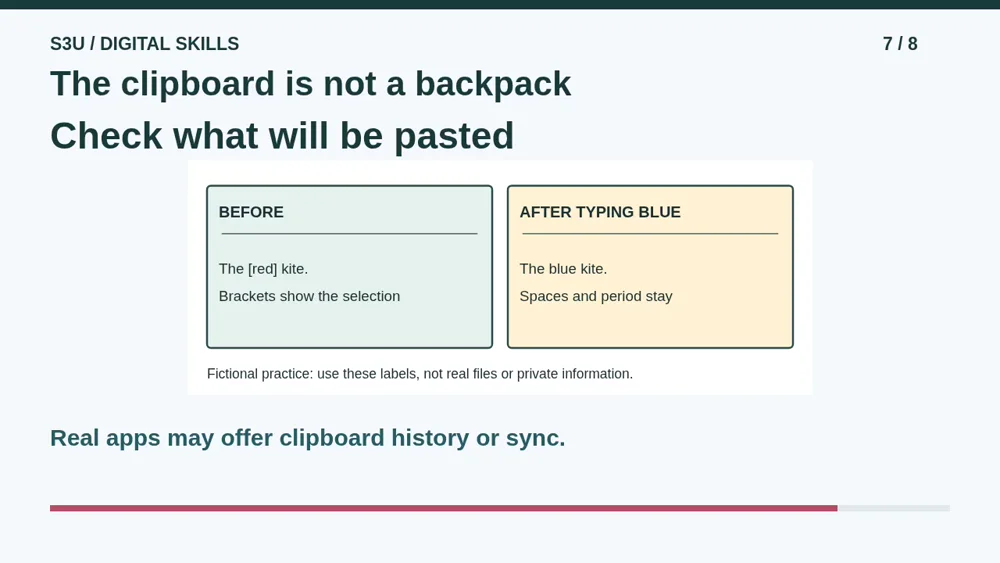
Fun fact: pasting normally does not use up the copied text. That is why you can paste it again. Our paper clipboard holds one item, but real devices may keep a history or share it across devices. Do not put private information into a practice clipboard. Check the content and destination before using Paste.
8. Try the two paper editors
Video: 2:47
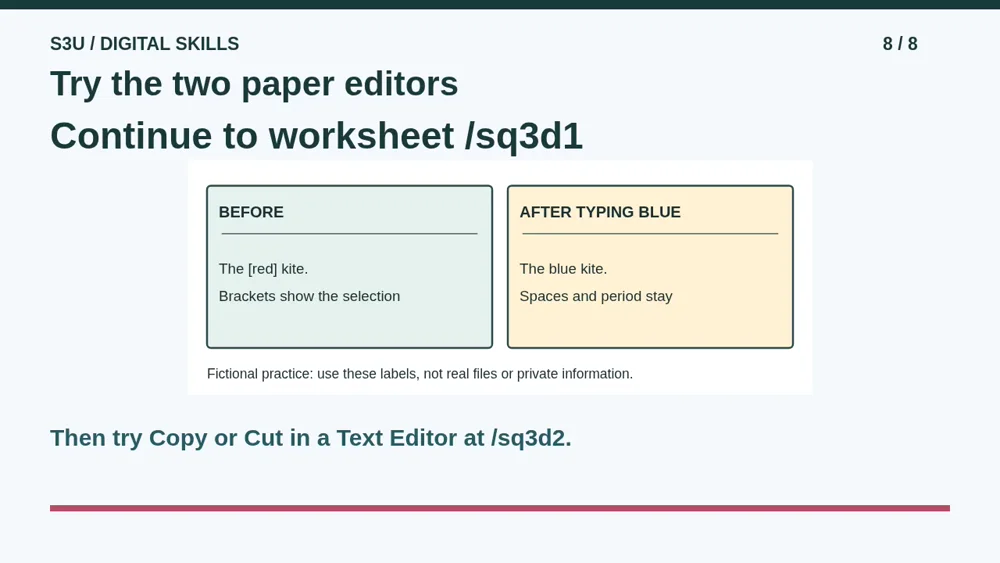
Continue to Select Just the Text You Need. Predict which characters change and which stay. Then try Copy or Cut in a Text Editor, where the two experiments start separately. Explain the result before choosing an answer. You can do both worksheets on paper without touching any real text on your device.
Show your understanding
You can point, explain aloud, draw or write.
- Predict what changes when typing replaces only the selected word.
- Compare copy and cut by what remains in the source, then predict paste at an insertion point.
Try it yourself
Pause at the new MOON label. Choose Copy or Cut to preserve the source, then predict a second paste without automatic spacing.
Continue to the selection worksheet, then compare the separate copy and cut experiments at /sq3d2.
Next: your worksheet
Select Just the Text You Needhttps://s3u.com/sq3d1
Lesson: https://s3u.com/lessons/select-copy-paste