Science / Grade 5
Move the whole folder
Learning goal: Create an empty folder, trace a whole-folder move, and preserve earlier and current records when folder names match.
Before you start: Read a simple folder path and distinguish moving from copying. Review File trails first when needed. Use the illustrated records only.
Read or print this lesson What to practiceThe video could not load. The transcript is still available below.
Next: your worksheet
Create a Folder, Move a Project
Checking sign-in...
Read the transcript
Saved reading place
Video transcript and practice. Reading or printing does not count as playback time or an assessed grade.
1. Give the project a home
Video: 0:00
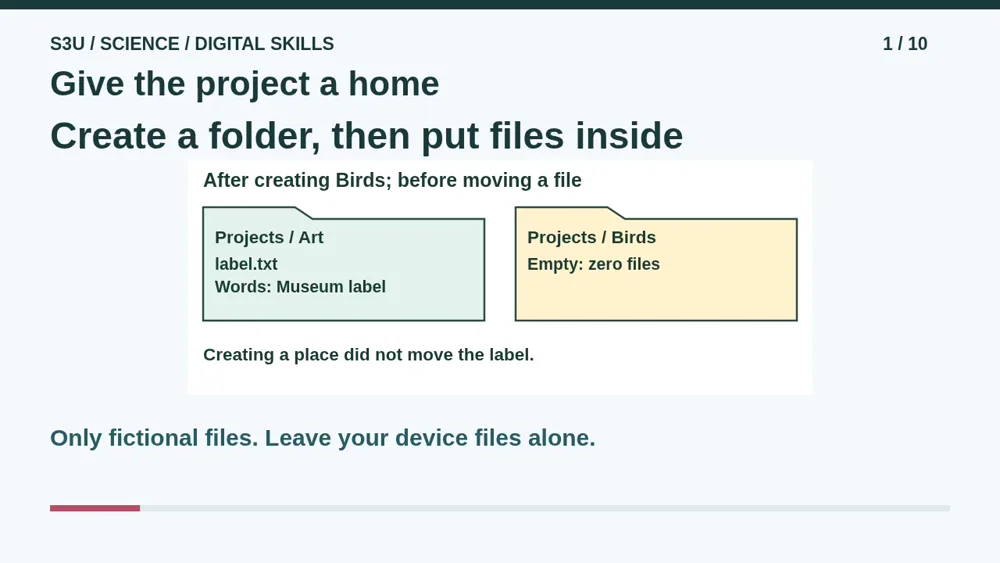
Imagine a class museum with notes and labels scattered across a pretend computer. We need a folder to keep one exhibit together. A folder is a place to organize files. Creating it does not collect every file with a matching name. The folder is not a tiny librarian with a shopping basket. We must choose what goes inside. Today we will use only illustrated records: create a place, move its contents together, and protect an earlier exhibit.
2. An empty folder starts empty
Video: 0:35
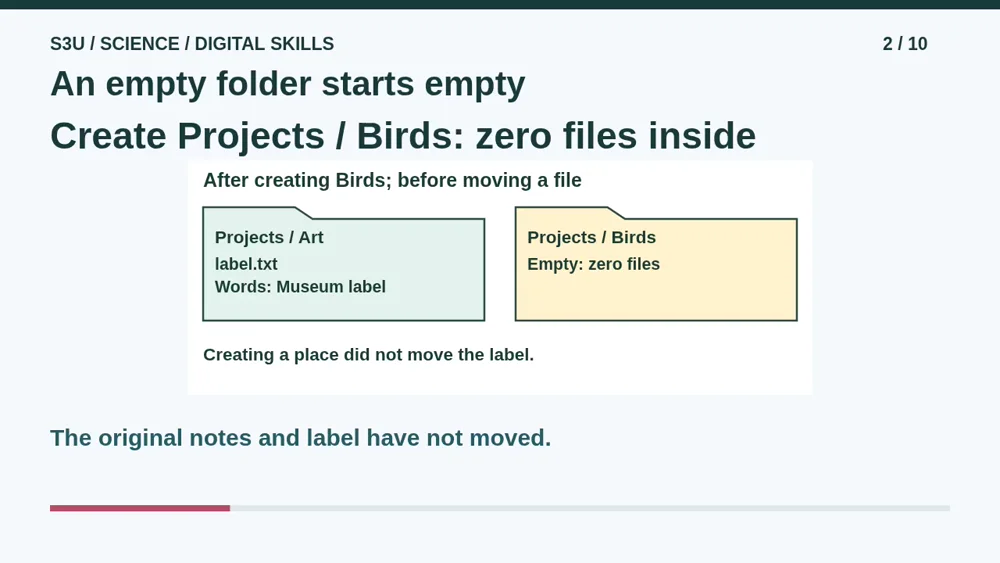
Look at Projects. Its Art folder already holds label dot T X T. We create a new Birds folder inside Projects. Birds starts with zero files. The label is still in Art. To organize it, we must separately move that label into Birds. After that move, its full path is Projects, Birds, label dot T X T. Creating a folder and moving a file are two different actions. Check both the old place and the new place instead of trusting the folder icon.
3. Read the outside step first
Video: 1:12
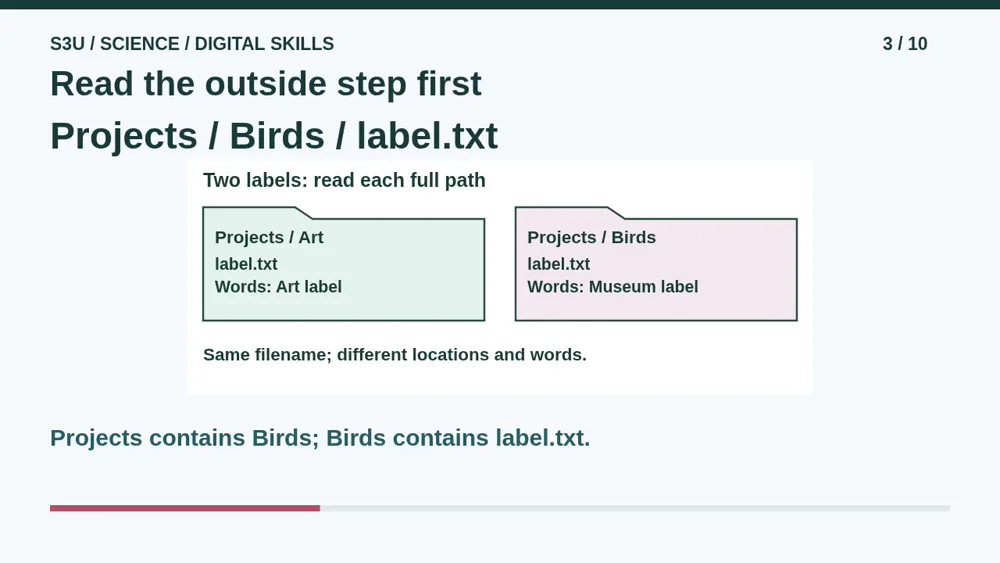
A full path is a trail from the outside folder toward the file. In our diagram, open Projects, then Birds, then label dot T X T. The slash separates steps in this paper model. A label dot T X T in Projects, Art is a different location. Read the whole trail, not only its last word. Our fictional record says Museum label. That content gives us another way to check which label we found. Names alone do not prove that files have the same words.
4. Move the folder, keep the team
Video: 1:49
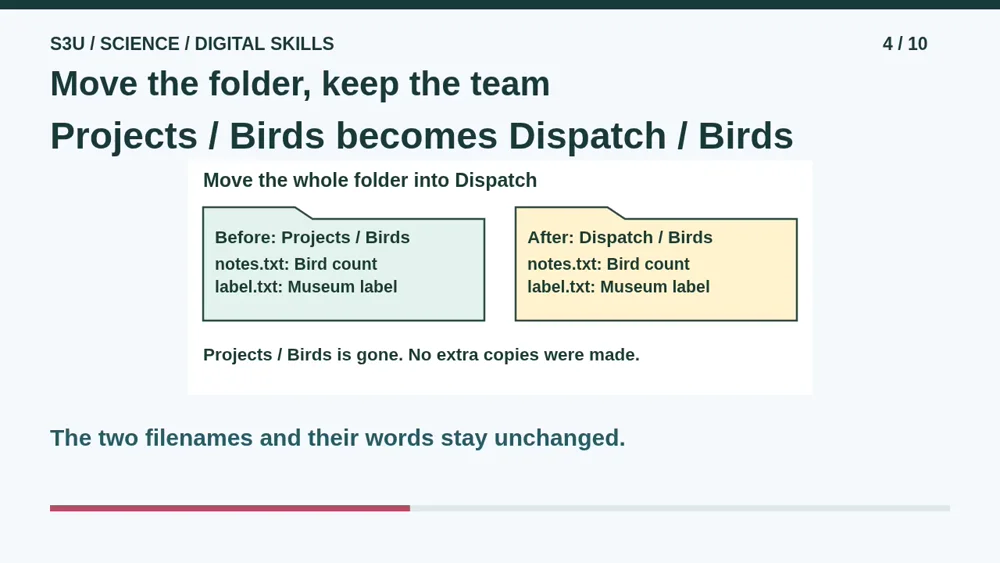
Now Birds contains two files: notes dot T X T and label dot T X T. Move the whole Birds folder from Projects into Dispatch. Both files stay inside Birds, and their full paths now start with Dispatch, Birds. We did not scatter them directly inside Dispatch. We also did not make another copy. The old Projects, Birds location is gone in this model. The filenames and words remain unchanged. Moving the folder is like changing the team's address, not replacing every team member.
5. Same name, different exhibit
Video: 2:28
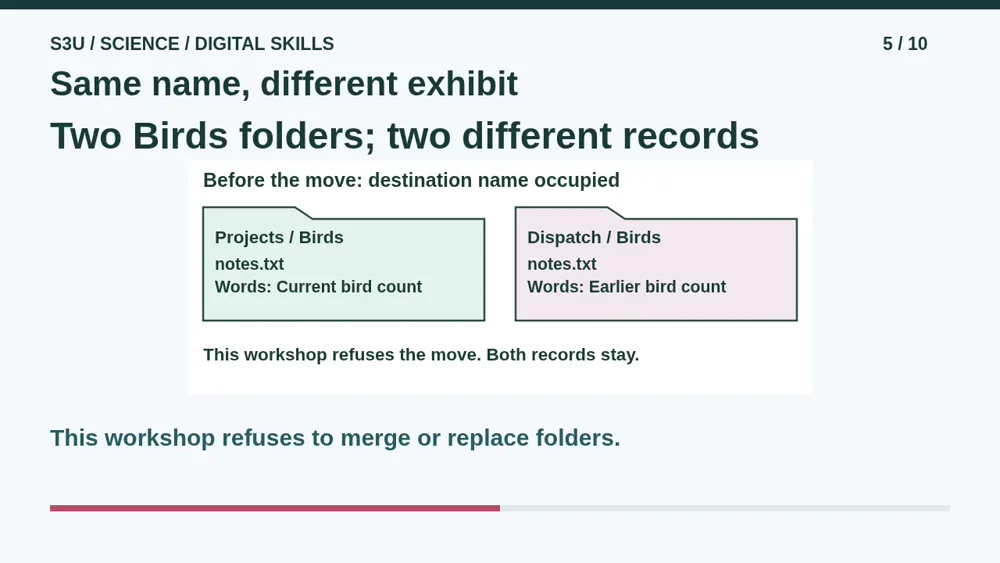
But what if Dispatch already has a Birds folder? Its notes say Earlier bird count. The incoming folder has notes saying Current bird count. They are different records even though both files are called notes dot T X T. Our workshop refuses the move while the destination name is occupied. Nothing is merged, erased or replaced. Real apps can offer different choices. Do not click through a real warning just to make it disappear. Read the locations and contents, and ask for help when unsure.
6. Make room without losing a record
Video: 3:07
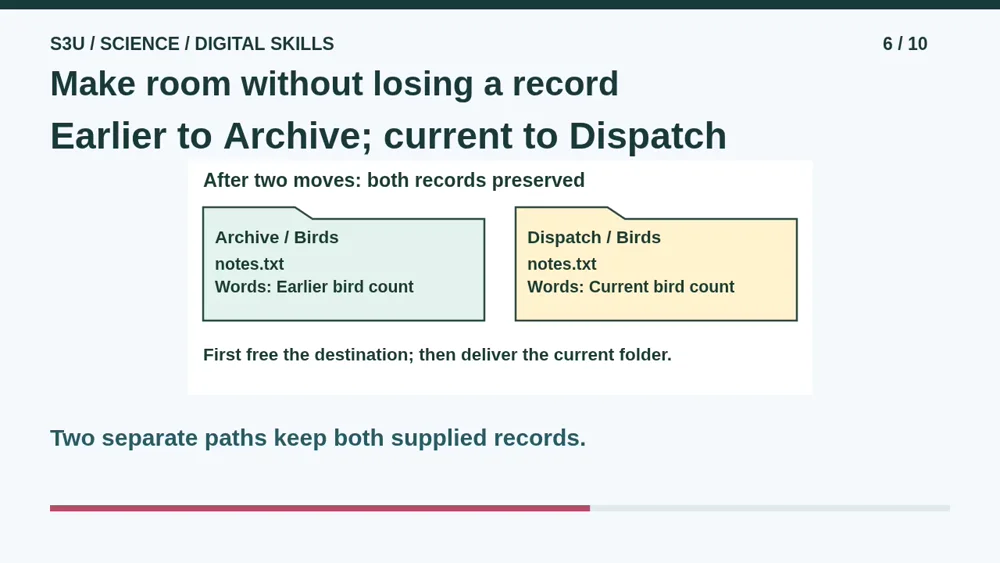
In our worked example, Archive has no Birds folder yet. First move Dispatch, Birds into Archive. The earlier notes stay inside it. Then move Projects, Birds into Dispatch. The current notes now live there. We still have both records, each at its own full path. Check the words at both destinations and check that the old locations are gone. Calling a folder Archive does not prove it is a safe backup. A name is a label, not a guarantee against loss.
7. Pause: two Moon folders
Video: 3:44
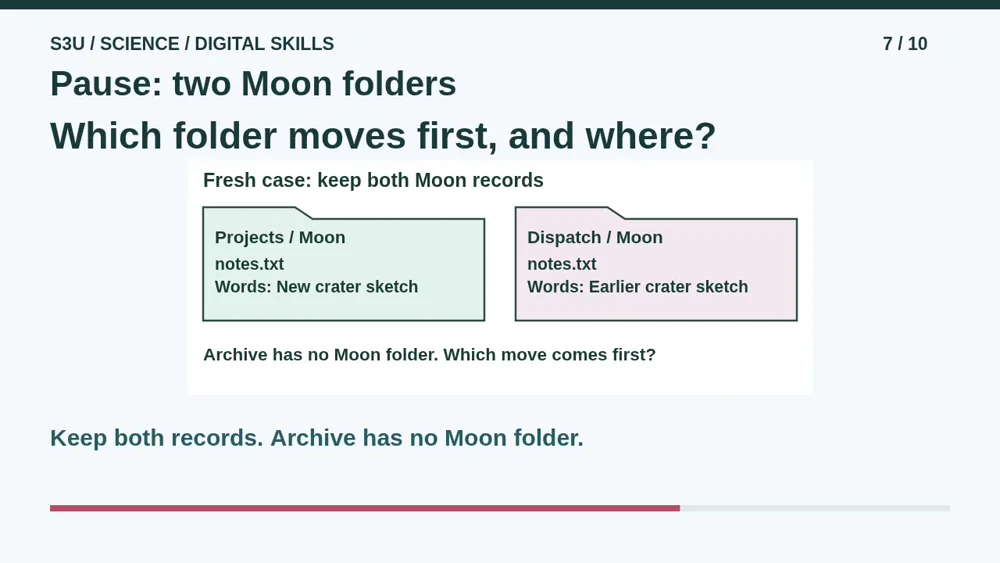
Pause for a new case. Projects, Moon holds notes saying New crater sketch. Dispatch, Moon holds notes saying Earlier crater sketch. Archive has no Moon folder. We want the new record in Dispatch and the earlier record in Archive. Our model refuses matching destination folder names. Which folder should move first? Give its starting path and destination parent. Then describe the second move and the final full path of each notes file. Use the record words to explain how you will check your plan.
8. Check both the path and the words
Video: 4:24
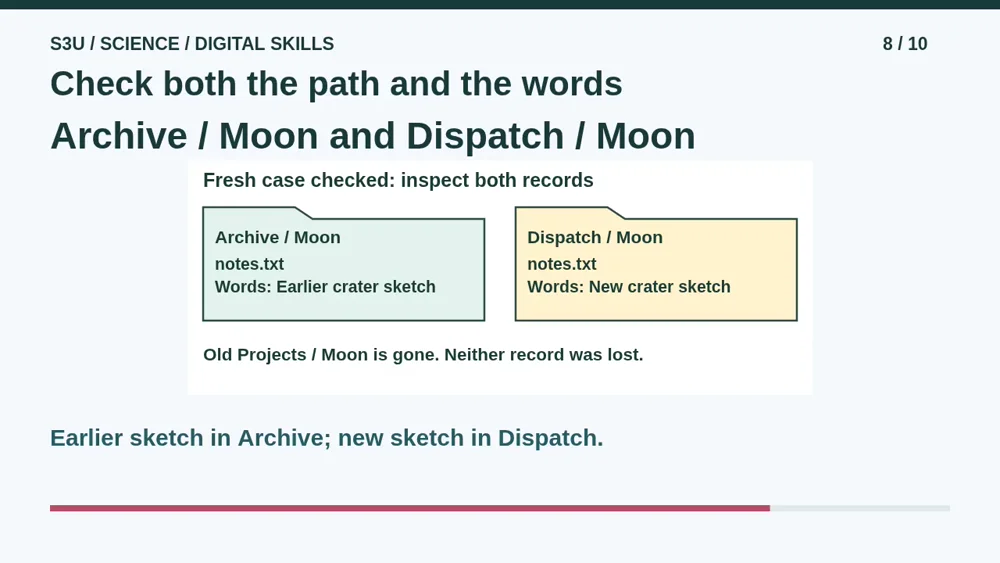
First move Dispatch, Moon into Archive. Its notes still say Earlier crater sketch. That frees the Moon name inside Dispatch. Next move Projects, Moon into Dispatch. Its notes still say New crater sketch. The final paths are Archive, Moon, notes dot T X T for the earlier record, and Dispatch, Moon, notes dot T X T for the new one. Counting two files is not enough: two copies of the new sketch would also make two files, but would lose the earlier record.
9. Fun fact: a name can repeat
Video: 5:00
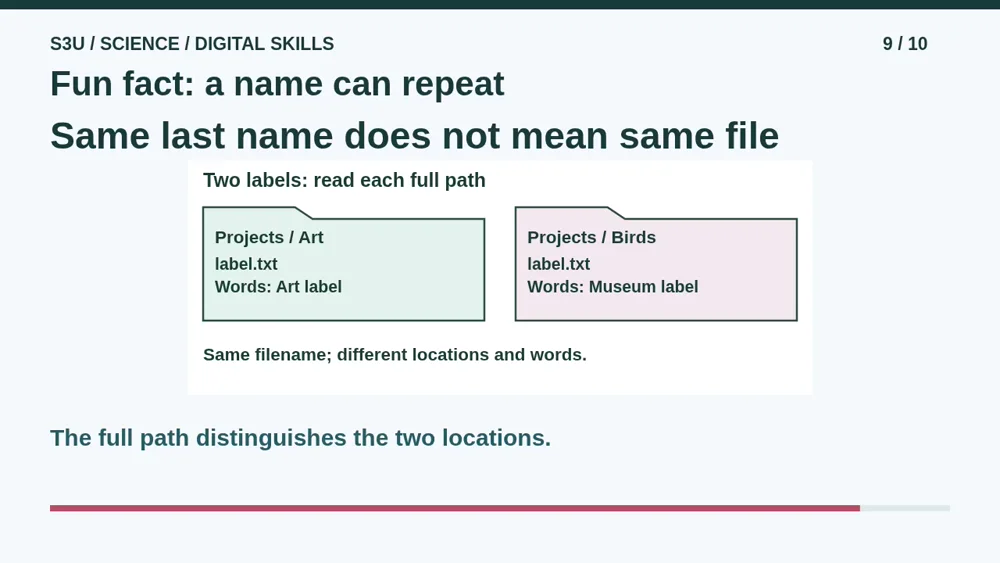
Fun fact: different folders can each contain a file with the same name. That is why a full path matters. In our model, Art and Birds can each hold label dot T X T with different words. A folder name also does not tell us which version is newest or whether anything is backed up. We know earlier and current here because the supplied records explicitly say so. On a real device, ask a trusted adult before moving important files or responding to a conflict warning.
10. Continue to fresh practice
Video: 5:36
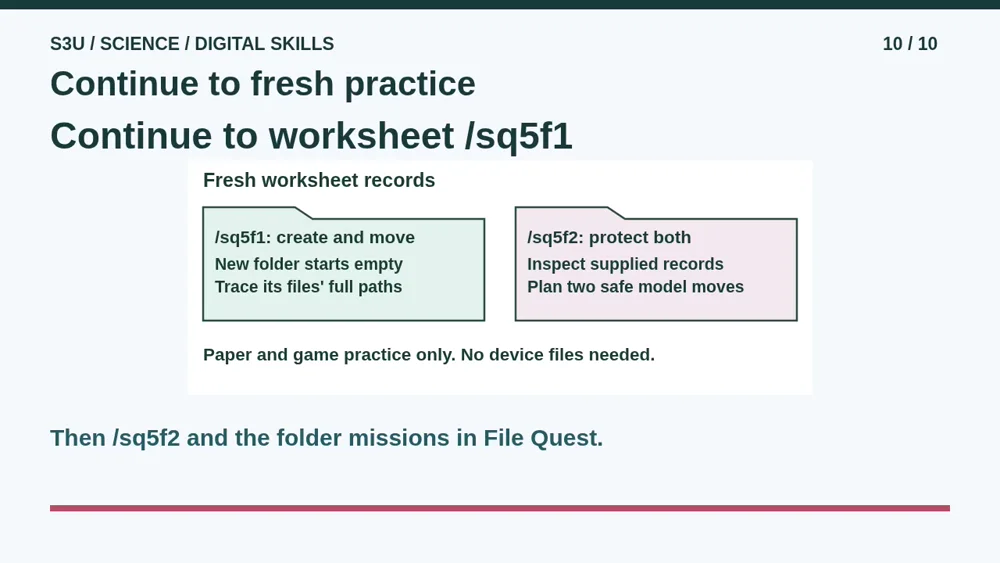
Continue to the first worksheet to create a home for a new project and predict the paths after a whole-folder move. Then use the second worksheet to protect two different records with the same folder name. The worksheets use fresh examples, so explain each choice from their own records. Afterward, try the folder missions in File Quest. You can save your private game place and return later. Watching or reopening a saved place is practice, not proof that you have learned every skill.
Show your understanding
You can point, explain aloud, draw or write.
- Explain why creating a folder leaves it empty and predict the changed full paths after moving a folder with its files.
- Plan an ordered pair of moves that preserves two same-named folders with different records, then verify both paths and contents.
Try it yourself
Pause at the two Moon folders. Plan the first and second moves, then check each final path and the supplied words.
Continue to both worksheets, then the folder missions in File Quest. Use only fictional records, not files on your device.
Next: your worksheet
Create a Folder, Move a Projecthttps://s3u.com/sq5f1
Lesson: https://s3u.com/lessons/move-the-whole-folder